> ## Documentation Index
> Fetch the complete documentation index at: https://docs.getomni.ai/llms.txt
> Use this file to discover all available pages before exploring further.
# Document Collection
**🧗♂️ The Challenge**: Processing loan documents manually is time-consuming and error-prone. Staff spend hours reviewing bank statements, pay stubs, and tax documents, often going back and forth with applicants about missing information or document quality issues.
**💡 Our Solution**: OmniAI's AI agent automatically receives documents via email, reads and validates them against your specific checklist requirements, and instantly sends detailed feedback about any issues - reducing processing time from hours to minutes.
## How It Works
### 1️⃣ Set up email for agent
Follow the **Email Setup** guide in [Settings](/ai-agent/settings).
After setting up, the agent can start sending & receiving emails.
### 2️⃣ Set up checklist
* Set up document checklist in [Agent Checklist](https://platform.getomni.ai/agent#checklist)
* Define required document types (bank statements, tax returns, or a custom document type)
* Agent will help streamline document collection via email or SMS
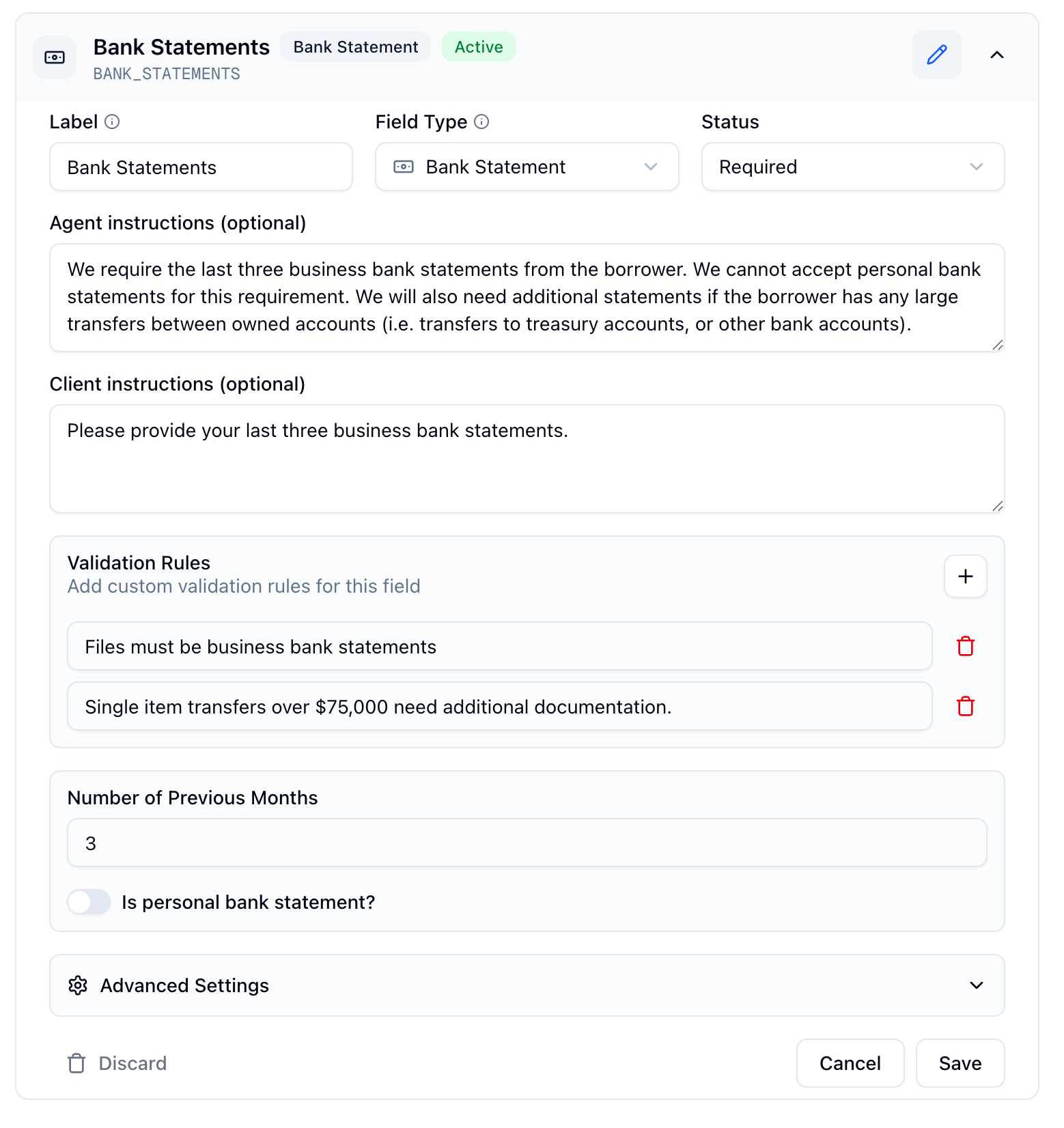 You can also add custom validation rules to each checklist item. When the
agent receives a document, it will try to classify the document and see if it
matches one of the checklist items. If yes, then it will apply the validation
rules to the document.
### 3️⃣ Send emails to agent
Omni's agent monitors its email inbox for incoming emails. For each email received, the agent will:
1. **Find or create a lead**:
* If new email, it will create a new lead
* If existing email from the lead list, retrieve the existing lead
2. **Extract & update checklist items** from email message
3. **Process attachments** using document intelligence (step 4)
4. **Auto-generate a response** to the message
* If agent is on `Autopilot` mode, it will directly send the response without permission
* If agent is on `Listen` mode, it will draft a response and admin can review and edit it
### 4️⃣ Document intelligence
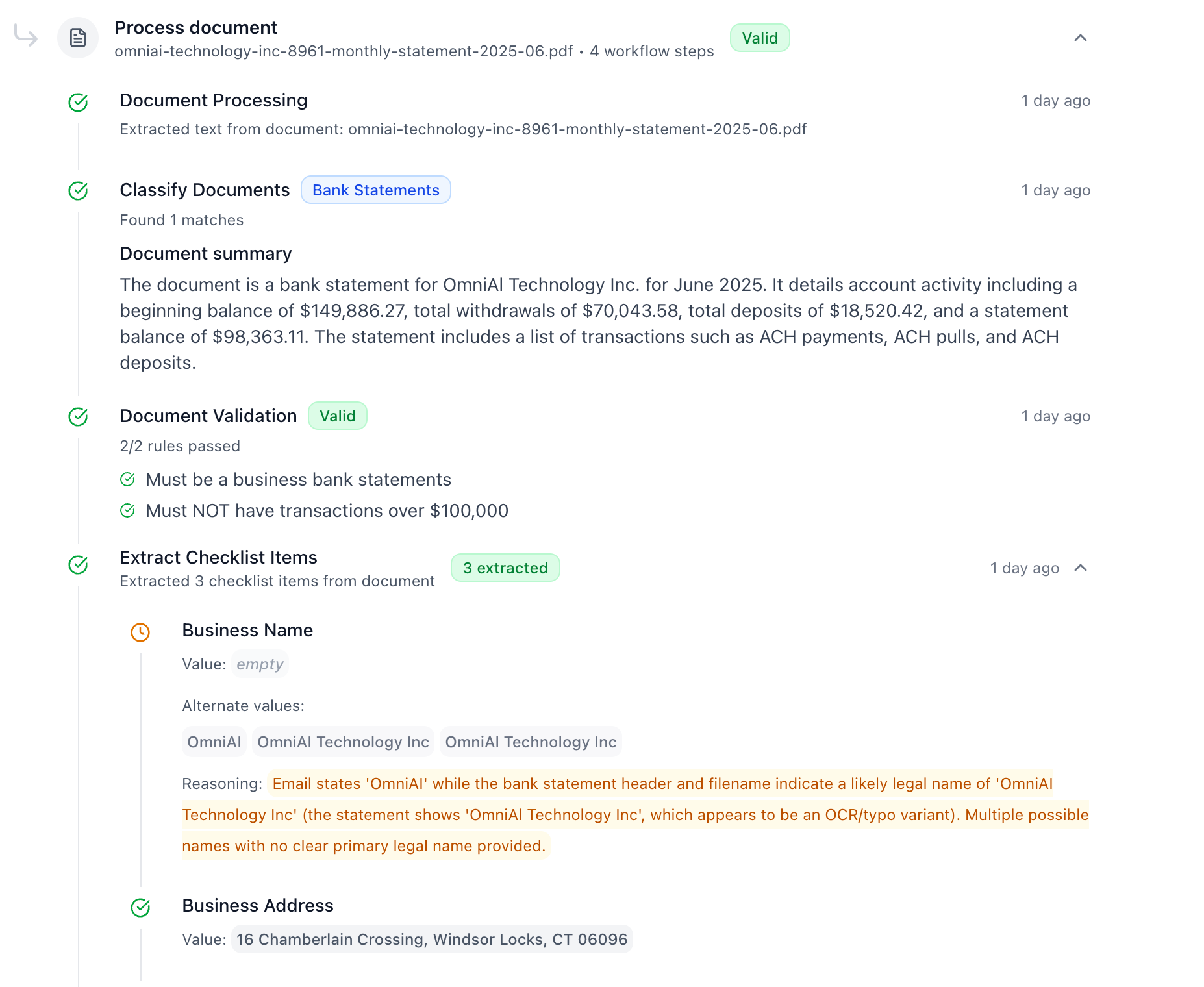
For each attachment in the email message, our agent will perform the following action in order:
1. **Use OCR** to convert document to markdown
2. **Classify the document** into one of the document requirements (bank statements, etc.)
3. **Apply validation rules** to the document if any
4. **Extract lead's checklist values** from documents
You can also add custom validation rules to each checklist item. When the
agent receives a document, it will try to classify the document and see if it
matches one of the checklist items. If yes, then it will apply the validation
rules to the document.
### 3️⃣ Send emails to agent
Omni's agent monitors its email inbox for incoming emails. For each email received, the agent will:
1. **Find or create a lead**:
* If new email, it will create a new lead
* If existing email from the lead list, retrieve the existing lead
2. **Extract & update checklist items** from email message
3. **Process attachments** using document intelligence (step 4)
4. **Auto-generate a response** to the message
* If agent is on `Autopilot` mode, it will directly send the response without permission
* If agent is on `Listen` mode, it will draft a response and admin can review and edit it
### 4️⃣ Document intelligence
For each attachment in the email message, our agent will perform the following action in order:
1. **Use OCR** to convert document to markdown
2. **Classify the document** into one of the document requirements (bank statements, etc.)
3. **Apply validation rules** to the document if any
4. **Extract lead's checklist values** from documents
 ### 5️⃣ Automated follow-up
If agent is on `Autopilot` mode, after agent sends the response, it will generate a follow up message and schedule a follow-up email if it doesn't hear back from the leads.
## Benefits
* **Automated Processing**: Documents are processed automatically without manual intervention
* **Real-time Validation**: Instant feedback on document quality and completeness
* **Intelligent Classification**: Documents are automatically matched to checklist requirements
* **Data Extraction**: Key information is extracted from documents automatically
* **Multi-channel Support**: Works with both email and SMS
## Related Guides
Learn how to configure your checklist
Fine-tune agent behavior
View and manage collected documents
Track all document collection activity
### 5️⃣ Automated follow-up
If agent is on `Autopilot` mode, after agent sends the response, it will generate a follow up message and schedule a follow-up email if it doesn't hear back from the leads.
## Benefits
* **Automated Processing**: Documents are processed automatically without manual intervention
* **Real-time Validation**: Instant feedback on document quality and completeness
* **Intelligent Classification**: Documents are automatically matched to checklist requirements
* **Data Extraction**: Key information is extracted from documents automatically
* **Multi-channel Support**: Works with both email and SMS
## Related Guides
Learn how to configure your checklist
Fine-tune agent behavior
View and manage collected documents
Track all document collection activity