> ## Documentation Index
> Fetch the complete documentation index at: https://docs.getomni.ai/llms.txt
> Use this file to discover all available pages before exploring further.
# Portal Domain
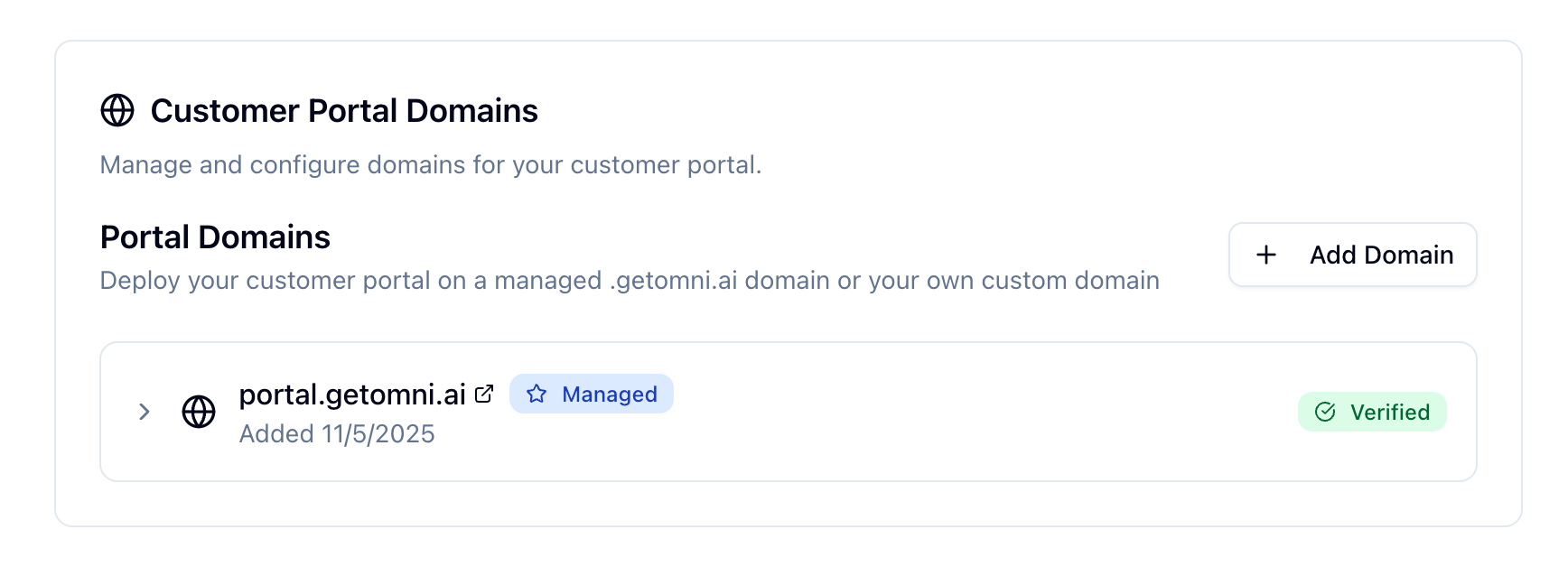 Configure a custom subdomain for your white-label applicant portal to provide a branded experience for your leads. This allows your portal to be accessed via a custom URL like `portal.yourcompany.com` instead of the default OmniAI domain.
## Overview
The application portal domain configuration allows you to:
* **Use your own subdomain** for the applicant portal (e.g., `portal.yourcompany.com` or `apply.yourcompany.com`)
* **Maintain brand consistency** with a custom domain for your portal
* **Improve trust and credibility** with leads by using your own domain
* **Customize the portal URL** to match your brand identity
## Portal Domain Setup
Setting up a custom subdomain for your applicant portal requires configuring DNS records to point your subdomain to OmniAI's servers.
### Steps
1. **Choose a subdomain** for your portal
* Common choices: `portal.yourcompany.com`, `apply.yourcompany.com`, `app.yourcompany.com`
* Ensure the subdomain is available and not used for other services
2. **Add the portal domain** in [workspace settings](https://platform.getomni.ai/settings/portal-domains)
* Enter your subdomain (e.g., `portal.yourcompany.com`)
* The system will generate the required DNS records
3. **Configure DNS CNAME record** in your domain provider
* Copy the CNAME record shown in workspace settings
* Add it to your domain's DNS configuration
* The CNAME should point your subdomain to OmniAI's portal servers
4. **Wait for domain verification** (usually a few minutes, can take up to 48 hours)
* The system will verify that the DNS record is correctly configured
* You'll receive a notification when verification is complete
5. **Activate the custom domain** in portal settings
* Once verified, enable the custom domain for your portal
* Portal links will now use your custom subdomain
## DNS Configuration
When you add a portal domain, you'll need to configure a CNAME record in your domain provider's DNS settings.
### CNAME Record Setup
The CNAME record is used to point your subdomain to OmniAI's portal servers. The specific CNAME target will be provided in your workspace settings.
**Example CNAME Record:**
```
Type: CNAME
Name: portal (or your chosen subdomain)
Value: [provided by OmniAI]
TTL: 3600 (or your provider's default)
```
## SSL Certificate
Once your domain is verified, OmniAI automatically provisions an SSL certificate for your custom subdomain. This ensures secure HTTPS connections to your portal.
SSL certificate provisioning may take a few minutes after domain verification.
Your portal will be accessible via HTTPS once the certificate is active.
## Portal Links
After configuring your custom domain, all portal links will use your subdomain:
* **Before**: `https://portal.getomni.ai/lead/abc123`
* **After**: `https://portal.yourcompany.com/lead/abc123`
Portal links sent via email, SMS, or shared directly will automatically use your custom domain.
## Troubleshooting
### Domain Verification Failed
* Check that the CNAME record is correctly configured in your DNS provider
* Ensure DNS records have propagated (can take up to 48 hours)
* Verify there are no typos in the CNAME record value
* Make sure the subdomain is not already in use for another service
* Check that the CNAME record name matches exactly (e.g., `portal` not `portal.yourcompany.com`)
### Portal Not Accessible via Custom Domain
* Verify the domain is verified and active in workspace settings
* Check that the custom domain is enabled in portal settings
* Ensure SSL certificate has been provisioned (may take a few minutes)
* Try accessing the portal after waiting a few minutes for DNS/SSL propagation
* Verify the CNAME record is still correctly configured
### SSL Certificate Issues
* Wait a few minutes after domain verification for SSL provisioning
* Clear your browser cache and try again
* Check that the CNAME record is correctly pointing to OmniAI's servers
* Verify the domain is still verified in workspace settings
## Related Guides
Learn about portal features and customization
Configure email domain for AI agent
Configure a custom subdomain for your white-label applicant portal to provide a branded experience for your leads. This allows your portal to be accessed via a custom URL like `portal.yourcompany.com` instead of the default OmniAI domain.
## Overview
The application portal domain configuration allows you to:
* **Use your own subdomain** for the applicant portal (e.g., `portal.yourcompany.com` or `apply.yourcompany.com`)
* **Maintain brand consistency** with a custom domain for your portal
* **Improve trust and credibility** with leads by using your own domain
* **Customize the portal URL** to match your brand identity
## Portal Domain Setup
Setting up a custom subdomain for your applicant portal requires configuring DNS records to point your subdomain to OmniAI's servers.
### Steps
1. **Choose a subdomain** for your portal
* Common choices: `portal.yourcompany.com`, `apply.yourcompany.com`, `app.yourcompany.com`
* Ensure the subdomain is available and not used for other services
2. **Add the portal domain** in [workspace settings](https://platform.getomni.ai/settings/portal-domains)
* Enter your subdomain (e.g., `portal.yourcompany.com`)
* The system will generate the required DNS records
3. **Configure DNS CNAME record** in your domain provider
* Copy the CNAME record shown in workspace settings
* Add it to your domain's DNS configuration
* The CNAME should point your subdomain to OmniAI's portal servers
4. **Wait for domain verification** (usually a few minutes, can take up to 48 hours)
* The system will verify that the DNS record is correctly configured
* You'll receive a notification when verification is complete
5. **Activate the custom domain** in portal settings
* Once verified, enable the custom domain for your portal
* Portal links will now use your custom subdomain
## DNS Configuration
When you add a portal domain, you'll need to configure a CNAME record in your domain provider's DNS settings.
### CNAME Record Setup
The CNAME record is used to point your subdomain to OmniAI's portal servers. The specific CNAME target will be provided in your workspace settings.
**Example CNAME Record:**
```
Type: CNAME
Name: portal (or your chosen subdomain)
Value: [provided by OmniAI]
TTL: 3600 (or your provider's default)
```
## SSL Certificate
Once your domain is verified, OmniAI automatically provisions an SSL certificate for your custom subdomain. This ensures secure HTTPS connections to your portal.
SSL certificate provisioning may take a few minutes after domain verification.
Your portal will be accessible via HTTPS once the certificate is active.
## Portal Links
After configuring your custom domain, all portal links will use your subdomain:
* **Before**: `https://portal.getomni.ai/lead/abc123`
* **After**: `https://portal.yourcompany.com/lead/abc123`
Portal links sent via email, SMS, or shared directly will automatically use your custom domain.
## Troubleshooting
### Domain Verification Failed
* Check that the CNAME record is correctly configured in your DNS provider
* Ensure DNS records have propagated (can take up to 48 hours)
* Verify there are no typos in the CNAME record value
* Make sure the subdomain is not already in use for another service
* Check that the CNAME record name matches exactly (e.g., `portal` not `portal.yourcompany.com`)
### Portal Not Accessible via Custom Domain
* Verify the domain is verified and active in workspace settings
* Check that the custom domain is enabled in portal settings
* Ensure SSL certificate has been provisioned (may take a few minutes)
* Try accessing the portal after waiting a few minutes for DNS/SSL propagation
* Verify the CNAME record is still correctly configured
### SSL Certificate Issues
* Wait a few minutes after domain verification for SSL provisioning
* Clear your browser cache and try again
* Check that the CNAME record is correctly pointing to OmniAI's servers
* Verify the domain is still verified in workspace settings
## Related Guides
Learn about portal features and customization
Configure email domain for AI agent